
Getting started
Create a composition
Create a native Oraphim composition for layered motion graphics, compositing, 2D/3D work, effects, cameras, lights, and reusable timeline content.
Updated August 28, 2026Create a composition
A composition is an editable Oraphim resource for layered graphics, compositing, animation, effects, masks, cameras/lights and 3D-aware work. Compositions can remain native project resources and be reused from Edit without baking every revision into an intermediate movie.
Visual reference
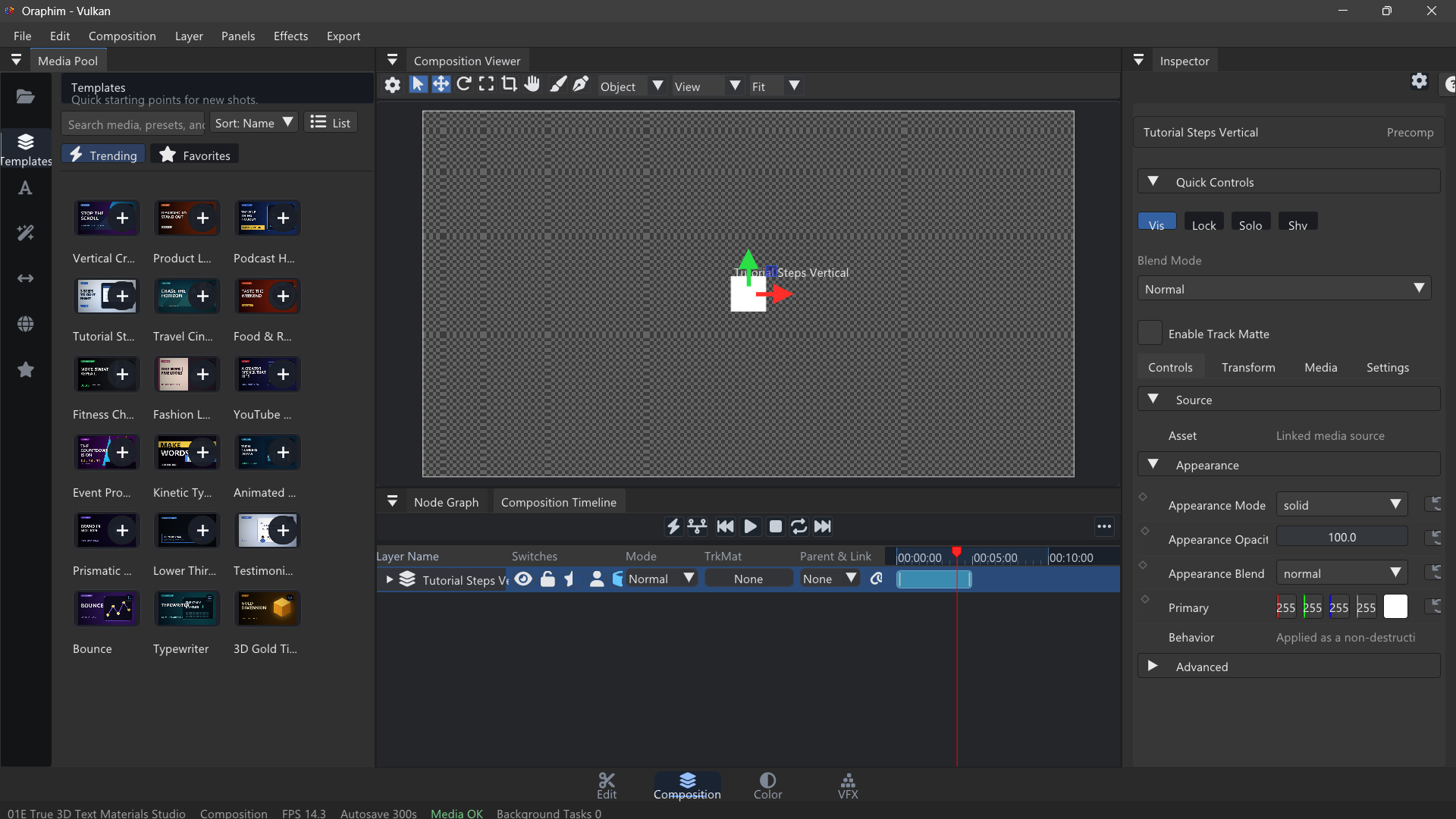
Use this layout as your orientation point when creating layered graphics, titles, or composites.
Create one
Open the Composition workspace and create a composition from its project/workspace controls. The global Ctrl+Alt+N shortcut creates a new composition and opens the Composition workspace; its quick-create default is 1920×1080, 60 fps and 10 seconds, so change the composition settings when the shot/project requires different timing or dimensions.
Start with the result in mind
- Match a source shot when the composition will replace or augment that shot.
- Use the actual delivery dimensions for standalone motion graphics.
- Keep duration only as long as needed; very long high-cost compositions are harder to preview and render.
- Name important compositions by shot/title purpose rather than leaving many generic “Comp” resources.
Build and verify
Add layers or graph operations incrementally, confirm each change in the Composition Viewer, and animate only properties the shot needs. For 3D or procedural work, establish the camera/output path before adding expensive detail. Save the project, switch away and back, reopen it, then render a short review to verify that the authored composition survives persistence and matches final output.
Example composition
For a first composition, use a 1920×1080 frame, a short duration, one text layer, one shape or solid, and a background clip or image. Move or fade the title with a few keyframes, preview it, then save and reuse the composition from Edit. Once that round trip is comfortable, add masks, effects, cameras, lights, or 3D only when the design actually needs them.