
Workspaces
Composition workspace
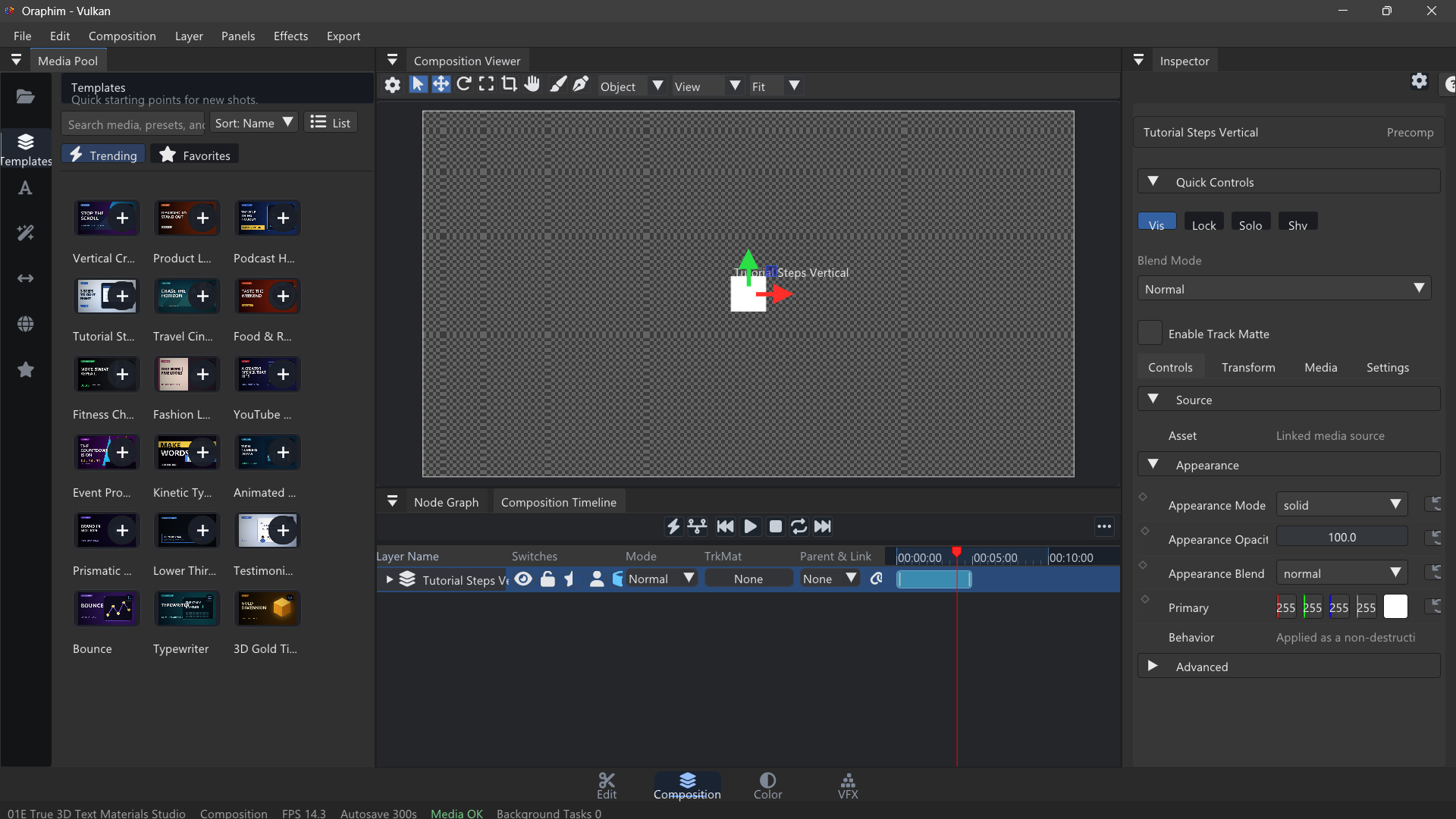
Create layered motion graphics and composites with a viewer, layer timeline, node graph, and Inspector.
Updated August 28, 2026Composition workspace
Mental model
A composition combines a time-based layer stack with procedural processing. Layers control what exists and when; the node graph and effects control how image data is transformed.
Typical workflow
- Create or open a composition.
- Add video, images, text, shapes, solids, cameras, lights, or a template.
- Arrange layer order and duration in the Composition Timeline.
- Select a layer and edit its source, appearance, transform, and settings in the Inspector.
- Add keyframes to animate properties.
- Use the node graph when branching, masking, combining, or procedural processing is clearer than a simple stack.
- Preview the full duration, then reuse the composition in Edit or export it.
Example: a reusable lower third
Add a background shape and two text layers, place them near the lower safe area, animate position and opacity over the first several frames, and shorten the layers to the required duration. Keep the text editable rather than baking it into an image.
A safe first composition
Create a five-second composition with one background, one text layer, and one shape or image layer. Animate only two or three properties, such as position and opacity, and preview the whole duration. Then place that composition back into Edit as a reusable clip. This small exercise teaches the most important concept: Composition creates an editable result that can remain connected to the larger project rather than becoming a one-off rendered file.