
Motion graphics
Text
Use text in Oraphim with a production-safe workflow, practical example, verification steps, and common failure checks.
Updated August 28, 2026Text+ (Typography)
Oraphim does not use simple, static text layers. The typography engine is powered by the Text+ node, an incredibly robust tool capable of generating everything from simple subtitles to Hollywood-style 3D extruded movie titles.
Visual reference
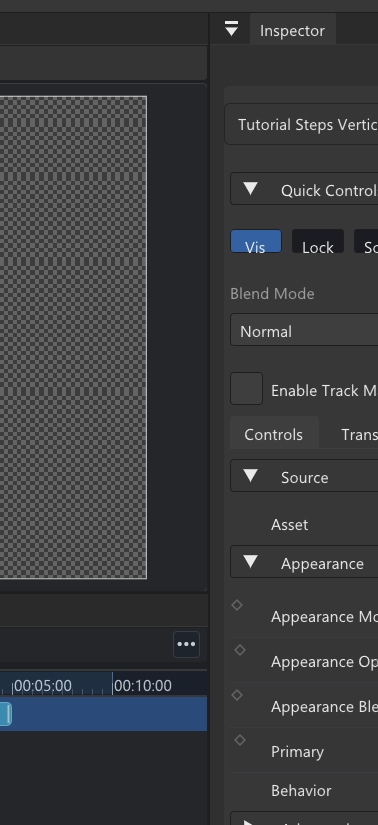
Keep typography editable until delivery so wording, size, spacing, and animation can be revised without rebuilding the shot.
Adding a Text+ Node
- In the Compositor Workspace, press
Shift + Spacebar. - Type Text+ and press Enter.
- Pipe the output of the
Text+node into aMerge(if placing it over a background) or directly toMediaOut. - Select the
Text+node to view its parameters in the Inspector.
The Inspector: Text Tab
The first tab controls the fundamental layout.
- Styled Text: The large text box where you type your content.
- Font: Select any font installed on your OS.
- Tracking: Adjust the horizontal space between all characters globally.
- Line Spacing: Adjust the vertical space between lines of text.
- V Anchor / H Anchor: Determines the pivot point. If you set H Anchor to "Center", the text will grow outwards in both directions as you type.
The Inspector: Shading Tab
The Shading tab is where Text+ becomes incredibly powerful. You are not limited to a single flat color. A single Text+ node supports up to 8 distinct "Shading Elements".
By default:
- Element 1 is active and represents the solid fill color of the text.
You can enable additional elements to build complex styles:
- Click the number 2 to switch to Element 2.
- Check the Enable box.
- Change its properties to Outline. Increase the thickness and change the color to red. You now have a red stroke around your text.
- Click the number 3 to switch to Element 3.
- Check the Enable box.
- Change its properties to Drop Shadow. Increase the softness and offset it.
All of this happens within a single node, rendering extremely fast without cluttering your graph.
Per-Character Styling
If you want the first letter of a word to be massive and red, and the rest to be small and white, you don't need multiple nodes.
- In the Viewer, right-click the text on screen.
- Select Character Level Styling.
- A new "Modifiers" tab will appear at the top of the Inspector.
- Click and drag your mouse in the viewer to highlight specific letters.
- Any changes you make in the Inspector (size, font, color) will now only apply to the highlighted letters.
Use Text in a production project
- Open Composition workspace and select the intended text, shape, layer, animation property, or procedural system.
- Establish the correct input state first—timing, media link, layer/node enable state, project settings, or source selection as relevant.
- Apply or adjust Text with one clear goal. Change the smallest set of controls needed to reach that goal so the result remains understandable and reversible.
- Review the complete affected range in context. Scrub difficult frames and also play at normal speed when motion or audio is involved.
- Save a named milestone before moving into another major operation, especially after graph changes, tracking, AI processing, relinking, simulation, or delivery setup.
Practical guidance
Typography is part of the composition, not an overlay afterthought. Set hierarchy, alignment, safe margins, readable contrast, and animation timing before adding decorative treatments.
A useful test is a short 5–10 second section containing both an easy case and a difficult case for this feature. Tune against the difficult moment without breaking the easy one. If two approaches are plausible, duplicate/version the project state and compare them rather than stacking both together blindly.
Verify the result
- Preview the full animation and compare the rendered output with the interactive viewer.
- Toggle/bypass the operation where possible and make sure the change you intended is actually responsible for the result.
- Check selection, visibility/mute/solo state, node connections, track locks, range, and source identity when the result appears missing.
- Save and reopen before treating a complex setup as reusable.
- If this feature changes final pixels or audio, render a short review and inspect the file outside Oraphim.