
Color
Tracking
Track Color windows and supported semantic/matte regions over time, then inspect and correct difficult frames instead of trusting an automatic pass blindly.
Updated August 28, 2026Tracking
Tracking lets a localized Color operation follow motion instead of remaining fixed in the frame. Oraphim supports window-oriented tracking workflows and also exposes supported semantic-region tracking/matte tools where their required backend is available.
Visual reference
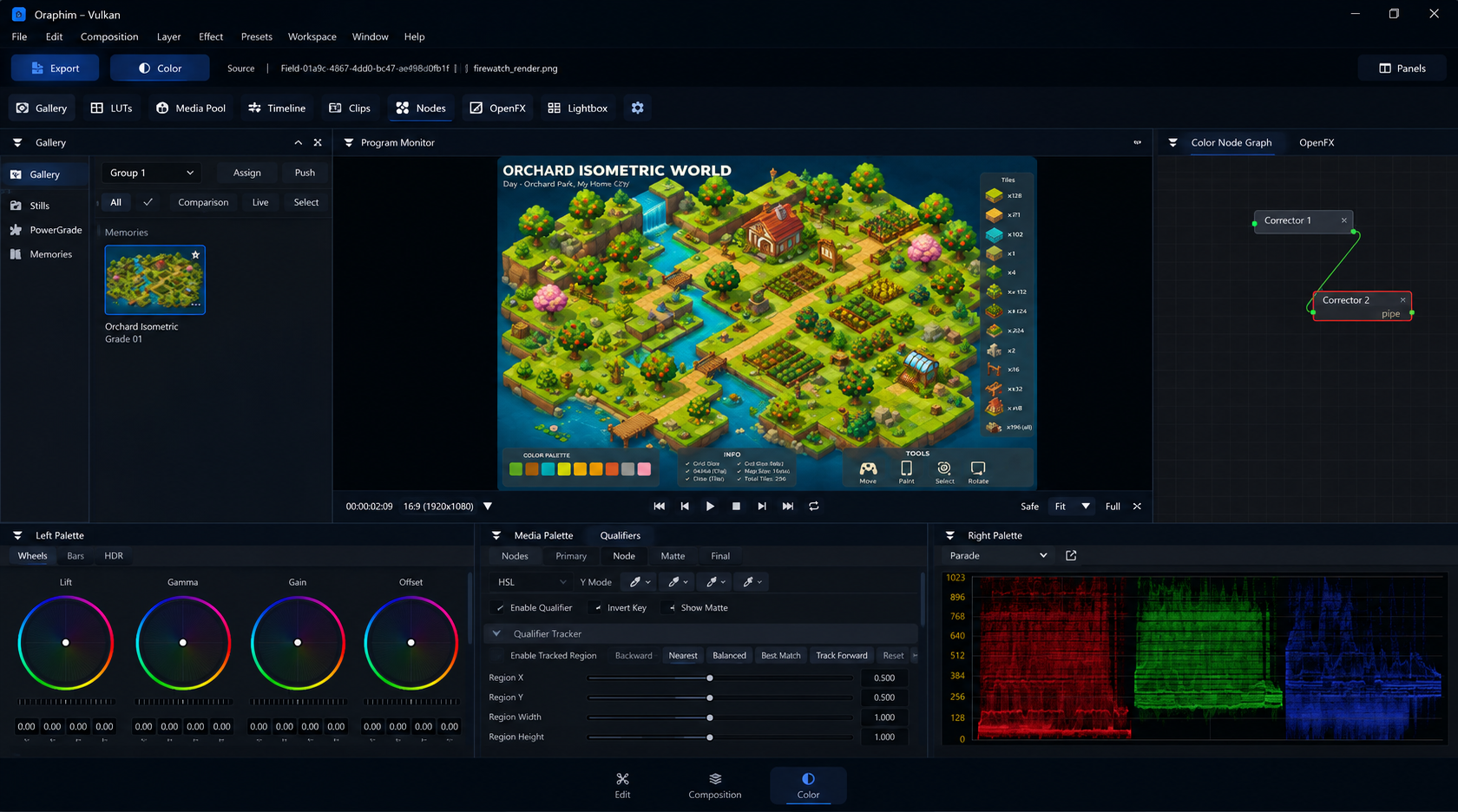
Check the track at the beginning, middle, and end of the shot; a track that looks good on one frame can still drift later.
Track a window
- Build the window and correction on a frame where the subject is clear.
- Start tracking in the required direction/range.
- Let the tracker analyze motion, then review the resulting path through the full range.
- Correct or re-track sections where occlusion, motion blur, lighting change, scale change, or a cut causes drift.
Do not judge the track only from the first and last frames. A track can leave the subject temporarily and return later.
Semantic regions
Where the semantic tracking backend is available, Oraphim can generate tracked face/skin-region mattes with controls such as expansion and feathering. Treat these as generated mattes that still require artist review, especially around eyes, lips, hair, profile turns, occlusion, and fast movement.
Verify
Play the shot at normal speed with the correction visible, then inspect difficult frames in matte/highlight view. Save and reopen the project before final delivery, and render a short review to confirm the tracking state is used in the final image path.
Tracking example
If a tracked face or object changes size or direction, inspect more than the start and end frames. Scrub through the middle, around occlusions, and across fast motion. Correct drift before building a strong secondary grade on top of the track. A simple stable track with a modest correction is generally easier to maintain than an aggressive grade attached to a fragile track.