
Getting started
Import media
Use import media in Oraphim with a production-safe workflow, practical example, verification steps, and common failure checks.
Updated August 28, 2026Import media
Import files
Visual reference
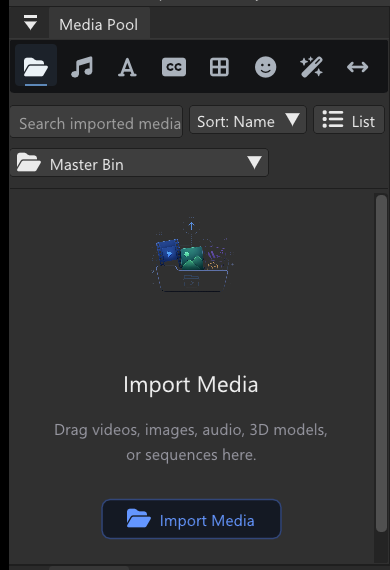
Use the Media Pool to confirm what is actually in the project before you begin cutting.
- Open Edit and select the folder icon in the Media Pool.
- Select Import Media, or drag supported files into the Media Pool.
- Wait for thumbnails and metadata to finish loading before editing a large batch.
- Use the search field and sort control to find an item.
- Drag the item to a compatible timeline track or use it inside a composition.
Keep media online
Oraphim projects reference source files. Moving or renaming a source outside Oraphim can make it unavailable. Keep project media inside a stable folder structure and use the relink workflow when a file moves.
Verify an import
Select the imported item and confirm its name, duration, dimensions, and preview. For audio, confirm that a waveform or duration appears and audition the file before building the edit.
Use Import media in a production project
- Open Project Hub / editor and select the intended active Oraphim project.
- Establish the correct input state first—timing, media link, layer/node enable state, project settings, or source selection as relevant.
- Apply or adjust Import media with one clear goal. Change the smallest set of controls needed to reach that goal so the result remains understandable and reversible.
- Review the complete affected range in context. Scrub difficult frames and also play at normal speed when motion or audio is involved.
- Save a named milestone before moving into another major operation, especially after graph changes, tracking, AI processing, relinking, simulation, or delivery setup.
Practical guidance
Use import media only where it solves a defined creative or technical problem, and compare the result against the untreated state.
A useful test is a short 5–10 second section containing both an easy case and a difficult case for this feature. Tune against the difficult moment without breaking the easy one. If two approaches are plausible, duplicate/version the project state and compare them rather than stacking both together blindly.
Verify the result
- Save and reopen the .orp project and confirm the expected media, workspace, and timeline state.
- Toggle/bypass the operation where possible and make sure the change you intended is actually responsible for the result.
- Check selection, visibility/mute/solo state, node connections, track locks, range, and source identity when the result appears missing.
- Save and reopen before treating a complex setup as reusable.
- If this feature changes final pixels or audio, render a short review and inspect the file outside Oraphim.