
Getting started
Interface overview
Understand the current Oraphim window, panels, workspaces, and selection-driven Inspector.
Updated August 28, 2026Interface overview
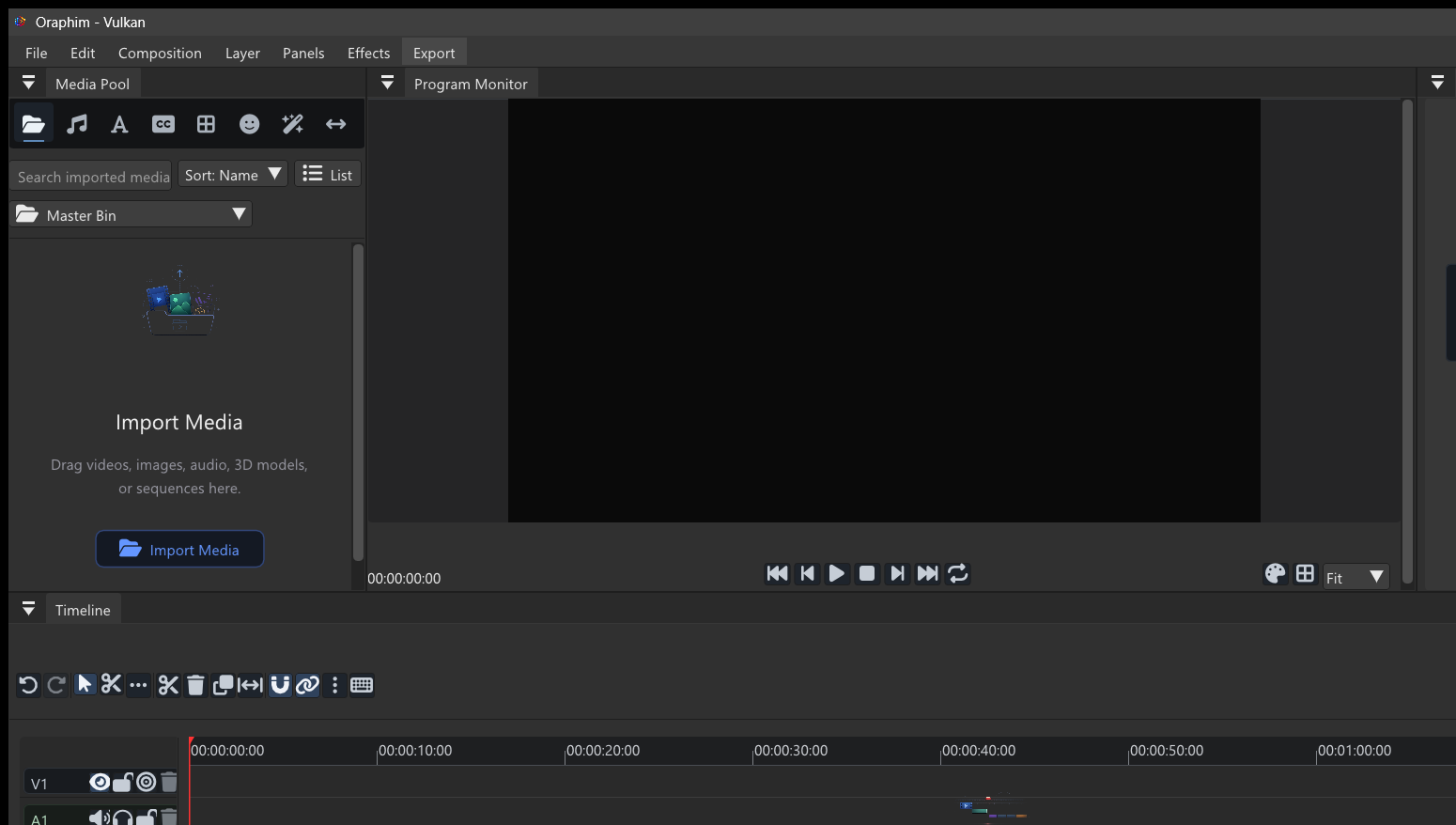
Main areas
- Media Pool: imported media, audio, text, captions, templates, effects, and related asset views.
- Program or Composition Viewer: the visible result at the current playhead time.
- Inspector: editable properties for the selected clip, layer, node, effect, or media item.
- Timeline: clip timing in Edit, or layer timing in Composition.
- Bottom workspace switcher: moves between Edit, Composition, Color, and VFX without creating separate project files.
Selection drives the interface
When a panel looks empty, first select the object you intend to edit. The Inspector changes with the selection. A timeline clip exposes clip controls; a composition layer exposes layer and appearance controls; a VFX object exposes stage and render controls.
Resizing panels
Drag visible separators to give a panel more room. Collapse a panel with its header control when the viewer or timeline needs more space. The current beta uses a controlled workspace layout rather than promising arbitrary floating or multi-monitor docking.
A useful mental model
Treat Oraphim as one project with several specialist workspaces rather than separate apps. Edit establishes story and timing. Composition handles layered graphics and composites. Color refines an explicit image source. VFX handles stage, procedural, simulation, 3D, and volume work. Export and Render Queue turn those editable resources into deliverables. The Media Pool and project file keep those pieces connected.
When you are unsure where to work, ask what you are changing: timing belongs in Edit, layer construction and animation in Composition, shot color in Color, and procedural/3D simulation work in VFX. This habit prevents duplicate work and keeps projects easier to revise.
Panel tour
Media Pool
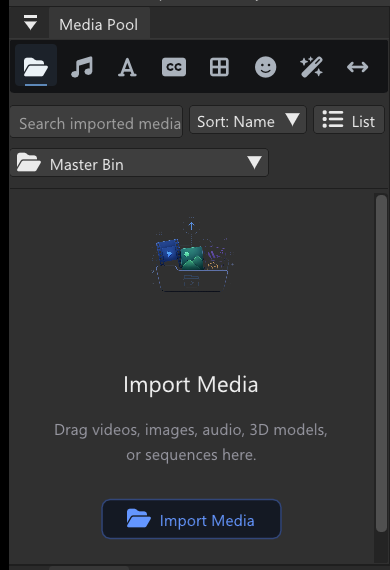
Use the Media Pool as the project’s source-of-truth view for imported media. Before editing, confirm the files you expect are present and identify anything that needs relinking or organization.
Timeline

The timeline answers when something happens. In Edit it shows clip timing across tracks; in Composition the timeline works with layers and animation timing.
Inspector
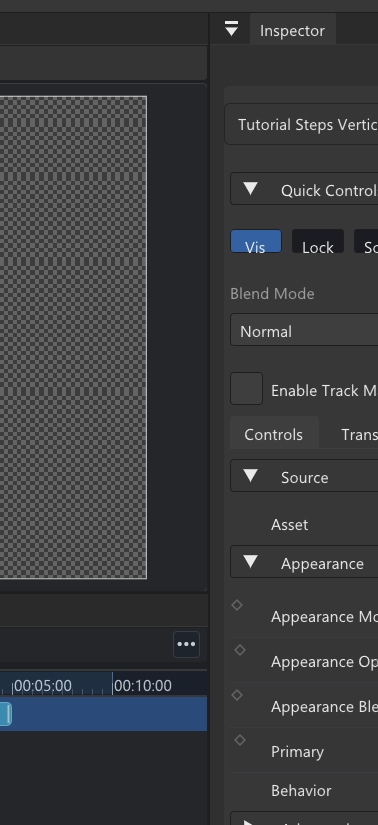
The Inspector answers what can be changed on the current selection. If its controls seem unrelated to the task, verify which clip, layer, node, effect, or media item is actually selected.
Viewer
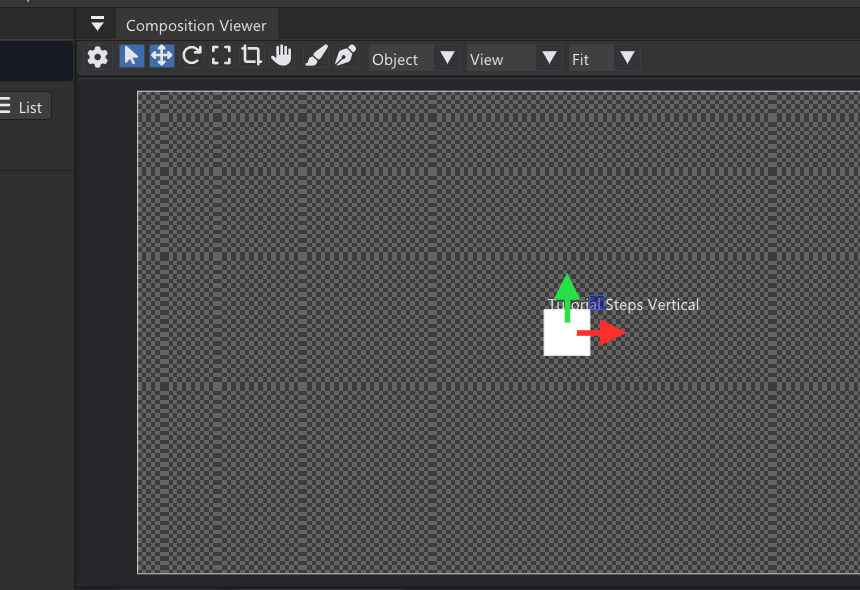
The viewer is where numeric settings become a visual result. Check framing, motion, masks, graphics, and effects here at useful zoom and at normal playback speed rather than relying on parameter values alone.