
Assets
Asset Browser
Use asset browser in Oraphim with a production-safe workflow, practical example, verification steps, and common failure checks.
Updated August 28, 2026Asset Browser
The Asset Browser provides stock images and videos without exposing third-party provider credentials in the desktop application.
Visual reference
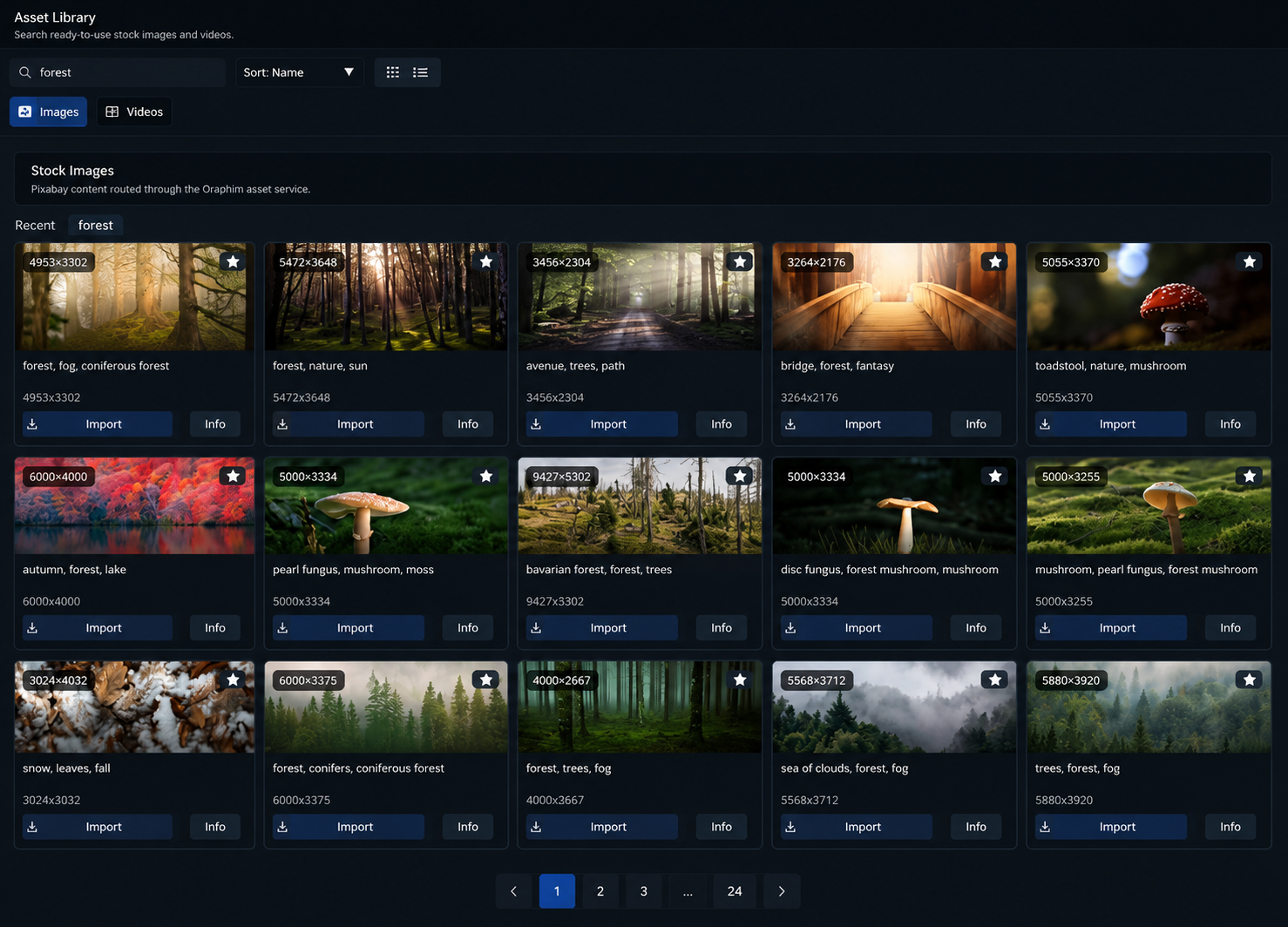
Search, inspect, and import from the Asset Browser, then verify the downloaded result in the project Media Pool.
Service path
Search requests flow from Oraphim to its Cloudflare Worker, then through the service cache to Pixabay. The desktop app never calls Pixabay directly and does not contain a Pixabay API key.
Browse
Use the Images or Videos tab, enter a search, and scroll through the responsive result grid. Resolution and available video metadata are shown on the asset card.
Local cache
Recent result metadata and thumbnails are cached locally to reduce repeated network work and improve return visits. Cache entries expire and are cleaned automatically.
Import
Import downloads the chosen asset in the background, reports progress, and adds the completed file to the current project's Media Pool.
How to use this section
Start in Asset Browser with asset search or imported result. Use this section to understand the Assets workflow before jumping into isolated controls.
Read the overview first, then move into the specific task page that matches what you are trying to produce or fix. Oraphim panels are context-sensitive, so keep the intended clip, layer, node, track, or project resource selected while following a procedure.
Guides in this section
Section-level verification
Confirm the downloaded asset appears in the Media Pool with usable metadata and preview. For project-changing operations, save a milestone and reopen it before relying on the setup as a reusable production workflow. For anything that affects delivered pixels or audio, inspect a rendered file as well as the interactive viewer.