VFX & 3D
Materials, cameras & lights
Build and verify PBR materials, 3D cameras, scene lighting, transparency, depth, and final camera framing in Oraphim.
Updated August 28, 2026Materials, cameras & lights
A believable 3D shot depends on the relationship between material response, camera perspective, lighting, and depth. Tune those systems together rather than trying to repair a lighting problem with color alone.
Visual reference
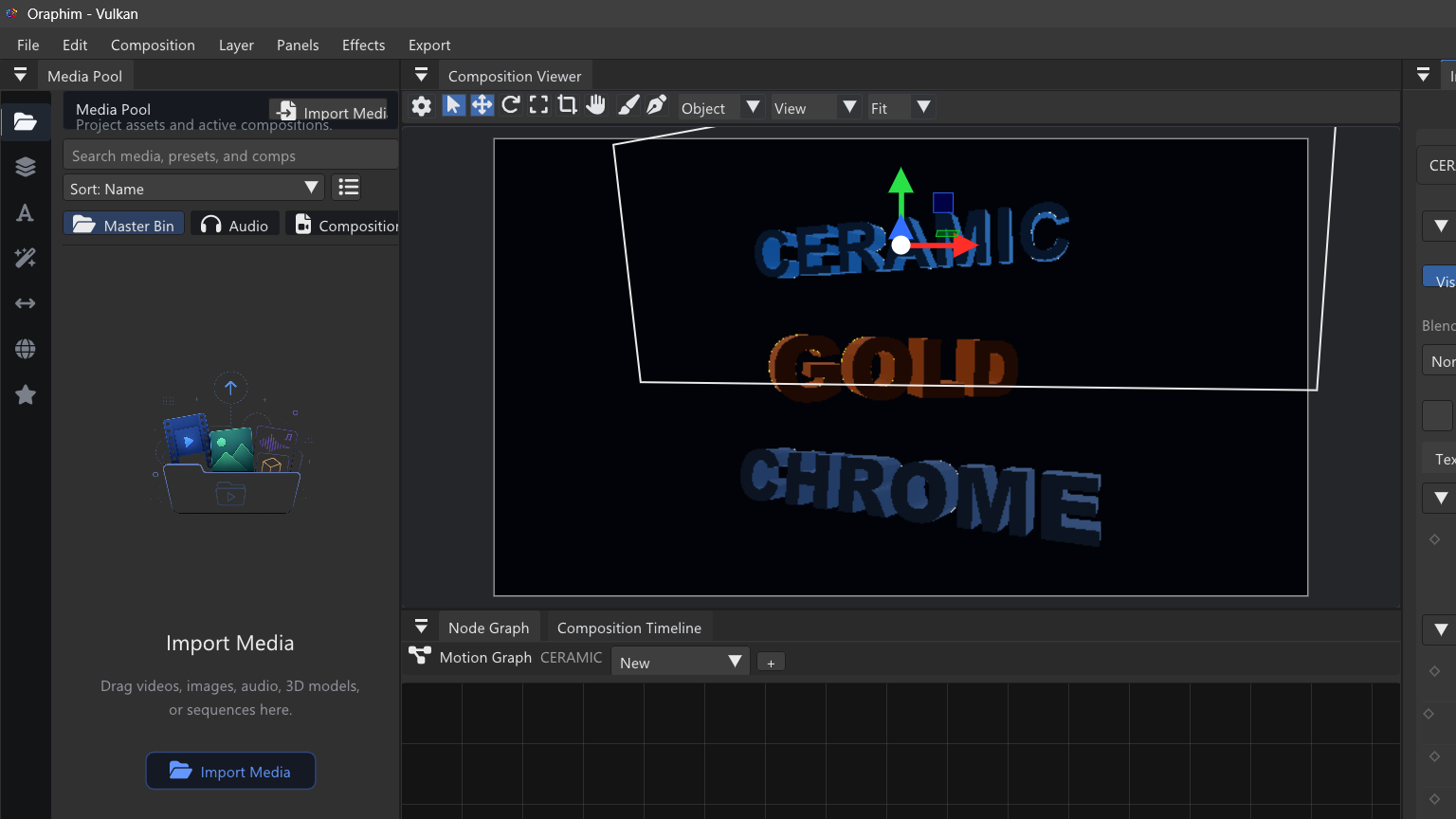
Build the image in order: object and material first, then camera, then lighting, then final render refinement.
Materials
Imported or authored 3D materials can carry base color, metallic/roughness behavior, emission, transparency, texture coordinates, and supported advanced PBR properties. Keep texture color intent correct: color textures and numeric data maps do not always belong in the same color treatment.
For transparent or layered materials, check the object from more than one angle. Oraphim's renderer has explicit transparency/depth contracts, so sorting and occlusion should be judged in the actual scene rather than from an isolated material preview.
Cameras
Create or select the camera that will define the final shot. Set framing before spending heavily on detail that will never be visible. When animating a camera, block start/end poses first, then refine interpolation and intermediate framing.
A simple camera move is a better import test than a still frame because it reveals scale, depth, material assignment, clipping, and bad transforms.
Lights
Use scene lights to explain form. Oraphim's 3D render path supports real camera/light contracts including spot and area-light sampling. Start with one primary light, establish direction and exposure, then add fill/rim/environment contribution only where the image needs it.
Practical setup
For a product-style test, place an imported object at the origin, use a three-quarter camera, one broad key light, a softer fill, and a modest rim. Rotate the object or camera over 3-5 seconds. Confirm highlights move consistently across the material and that shadows/depth remain stable.
Verification
Render several frames—not just the first. Look for texture swimming, wrong UV sets, clipping, transparent surfaces drawing in the wrong order, lights that disappear during motion, and a camera that differs between preview and export. Save/reopen before treating the setup as reusable.