
VFX & 3D
3D scene import
Import OBJ, FBX, glTF, and GLB scenes into editable Oraphim 3D workflows while preserving supported materials, UVs, and hierarchy transforms.
Updated August 28, 20263D scene import
Oraphim's production scene importer supports real OBJ, FBX, glTF, and GLB files. Imported scene data can feed editable geometry and Renderer3D workflows instead of becoming a flattened screenshot or opaque placeholder.
Visual reference
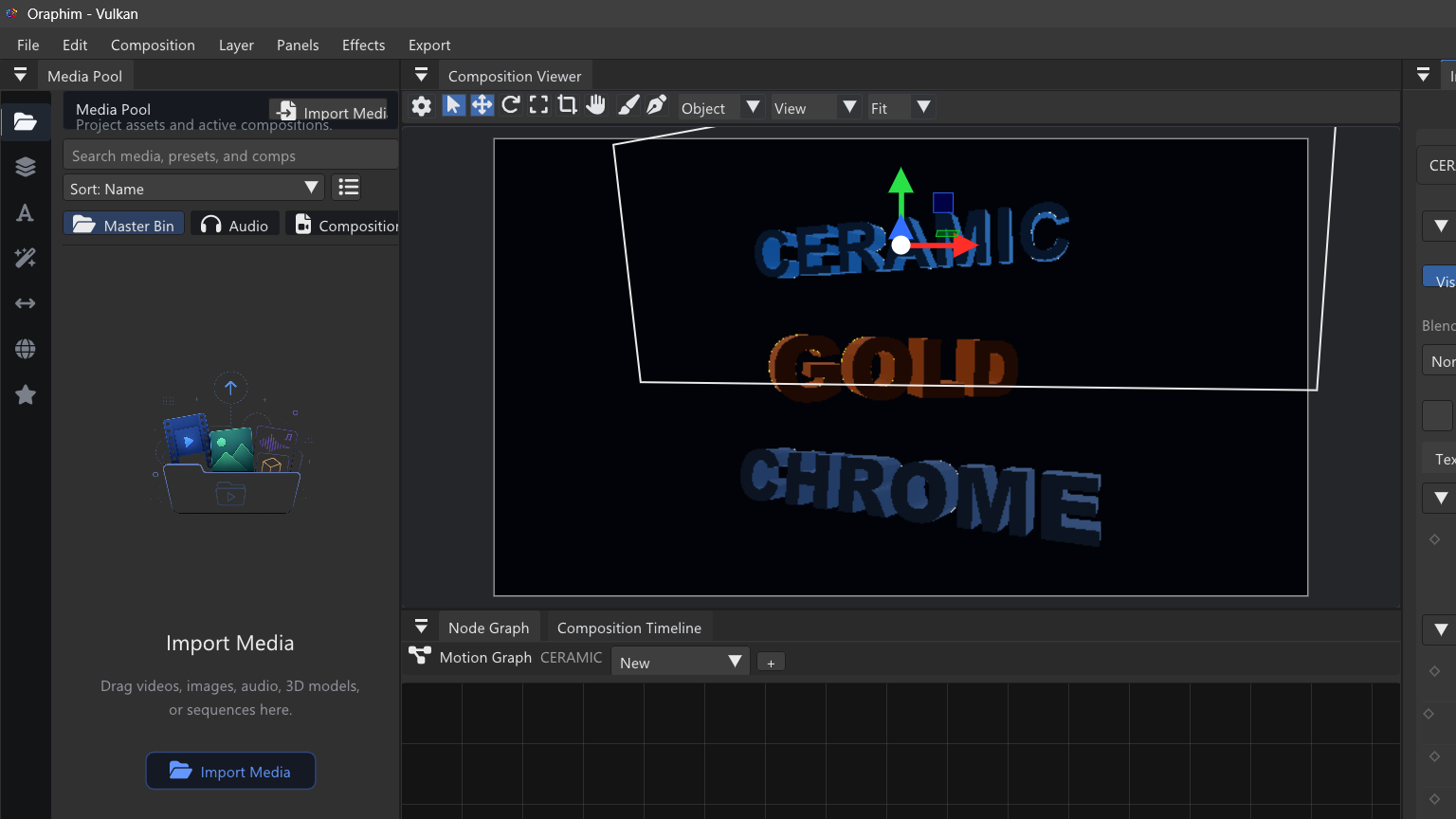
After import, verify transforms, materials, UVs, camera framing, and one test render before building a long shot.
Before importing
Keep the model and its referenced textures together. For OBJ, keep the .mtl and relative textures in the expected folder structure. For glTF, keep external buffers/textures beside the .gltf unless the asset is self-contained GLB.
Import workflow
- Import the scene into the project through the Media Pool or the compatible 3D import path.
- Add or bind the resulting Scene3D media to the intended VFX/composition layer.
- In the VFX graph, use the scene/geometry import path and connect it to the 3D renderer/output chain.
- Frame the imported scene with a camera and confirm geometry orientation, scale, materials, and textures.
- Save the project, close it, reopen it, and confirm the scene remains editable and previewable.
Format notes
OBJ supports polygon geometry, MTL material slots, relative base-color textures, UVs, and primitive-to-material assignment. FBX is decoded through Oraphim's production Assimp path and supports polygon geometry, primary UVs, authored materials, and editable material assignment. glTF/GLB preserve nested transforms through the editable geometry handoff and support material data including metallic/roughness and supported extensions such as transmission, IOR, volume thickness/attenuation, emissive strength, and per-texture UV transform metadata.
Relinking
If a source scene moves, use the media relink workflow rather than re-importing a second unrelated copy. After relink, validate the project and reopen it to confirm the layer's media identity and graph path resolve to the new location.
Verification
Orbit the stage, inspect more than one angle, check UVs/material assignments, render a short camera move, then reopen the .orp. A successful viewport import is only the first check; persistence and rendered output matter for production.